_edited_edited.jpg)
How to Build a Class Escape Room With Canva Code

Canva code is an exciting tool that I feel I've barely started to use to its highest potential.
Full disclosure, I have run into some setbacks that you will want to watch out for before you dedicated too many hours to a Canva code project. My school's network settings recently started blocking my Canva sites with embedded coded widgets because of the javascript.
Fortunately, I've realized it's more effective to embed the activities directly into Canvas. That seems to do the trick. I do recommend testing a simple Canva code-created activity with students before investing too much time creating something like an escape room.
The first escape room I created with Canva code is a review of The Great Gatsby. After teaching that book for seven years, I was ready to put all of that knowledge to a new use.
Step 1: Start at the Ending

In my escape room story, the vault contains the last will and testament of Nick Carraway. He is seeking to preserve that memory of Gatsby's tragedy by requiring those who wish to inherit is fortune to review the story of his mysterious friend.
A last will and testament vault like this one would probably work for many books. It might be a great premise to start with as you build your own. Feel free to take the idea.
To increase the challenge, my final lock is a double lock. It requires students to unscramble to the words of a mystery sentence they collect as they solve puzzles and then apply a cipher to translate that mystery sentence into a numeric code.

I also discovered you can ask it to lock for two minutes after incorrect attempts, although refreshing the page gets around that, so it's more of a cool idea than a perfect feature.
This was one of my most exciting discoveries: realizing I could ask Canva to code a lock that would reveal a new clue.
Prompts to Create a Final Interactive Escape Room Locks in Canva Code
I recommend keeping your prompts simple and adding features one at a time. It's hard to adjust as you go if the initial idea is too complex.
"Create an interactive graphic of a wall safe that is opened by two locks. One lock is opened by the mystery sentence, "___________" and one is opened by the code: "_________________"
Reveal a hint after the first lock is opened that says, "____________________"
"When the final lock is opened, reveal a document that says, ______"
Step 2: Create Locks to Reveal Clues
You can use the prompts from the list below to create locks that each reveal a different clue.
"Create an interactive graphic of a padlock that is opened by the code:_________"
"When the correct code is entered, reveal the clue:____________________"
"Require a two-minute wait when an incorrect response is entered."
Step 3: Create a Collection of Digital Artifacts
You can also keep this step simple by using a copy of a text or texts as your artifacts, but if you are feeling fancy and have the time, you can also create something like I did for my Gatsby Escape Room.
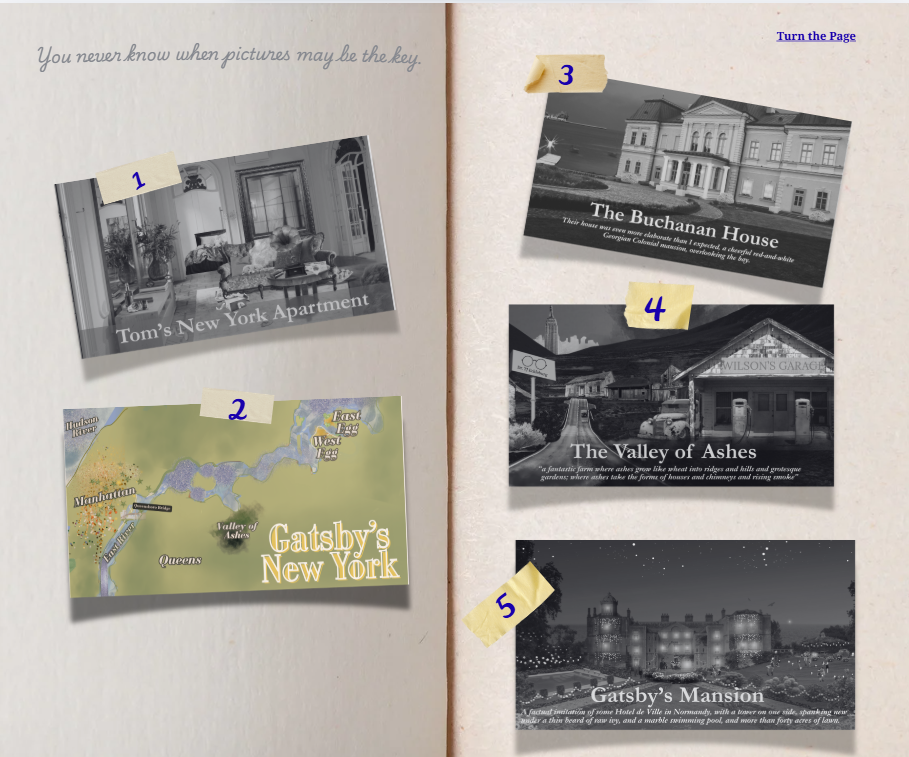
This "journal" has images I created on Canva of the settings of The Great Gatsby as well as a riddle for each of the digital padlocks in the game.


Step Four: Put It All Together
You can do this either by creating a presentation or a website template in Canva and embedding the locks into the pages.
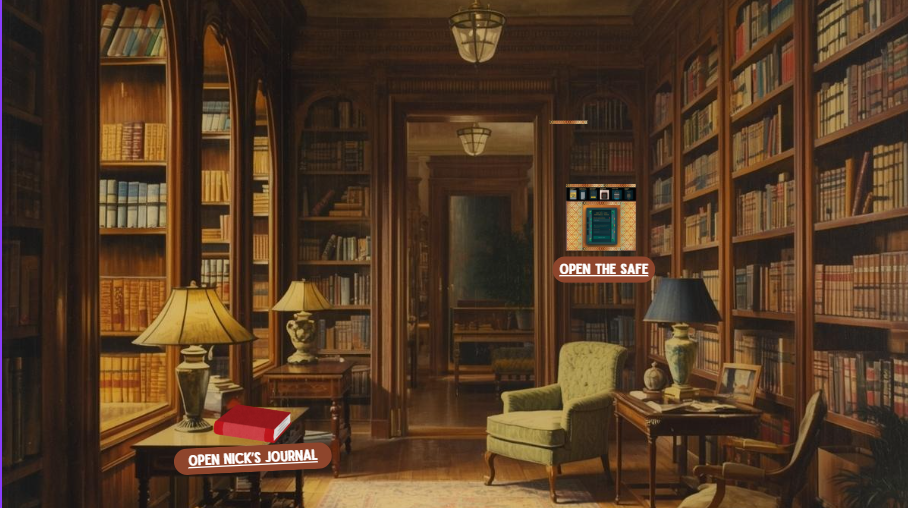
I created a digital room (generated with Canva AI) and linked images in the room to the page with my series of padlocks and to the pages of Nick Carraway's journal of riddles and clues.
Step Five: Assign to Your Students
That's it! You've made an engaging, interactive escape room. You can assign it to students by embedding it in your LMS or by publishing a public view link (though that public link might not work if your school network blocks pages with javascript).
To create more accountability and reflection, you can require students to reflect on an exit ticket like the one below.

You can also use the prompt, "Collect names of those who opened the safe in a Canva sheet" to add a final way to collect the names of students who finish (though having students turn in a screenshot might be simpler and perfectly effective).
If you happen to teach the Great Gatsby and would like to purchase my Great Gatsby Escape, you can find it in my Teachers Pay Teachers Store.
If you like these kinds of engaging and interactive activities, you might also like my best-selling Intro to the Great Gatsby Murder Mystery lesson. You can learn more about the inspiration behind that activity here.
You can also find over fifty engaging and creative ELA and ESL activities like these in the Scholaglot TPT Store. Follow my store for information on sales, discounts, and new products.
I'd love your feedack on this guide! Comment below.


Comments